
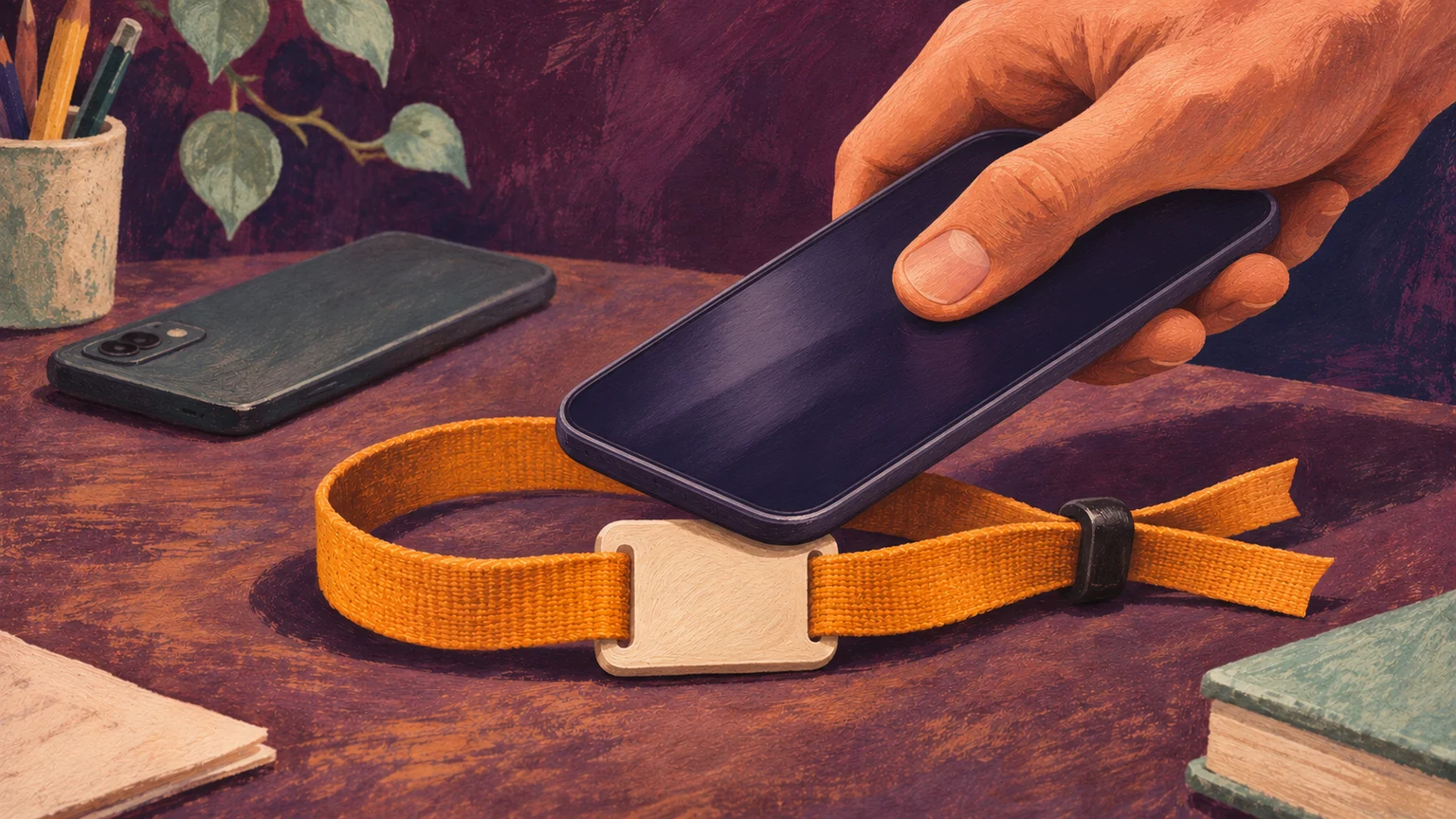
To program an NFC wristband with a web link, use an NFC writing app to save a URL record, then read the wristband back to check the address. Finally, try it with a second phone that has no personal automation set up for that wristband.
This works for sharing an event schedule, product page or digital business card. The wristband stores the address; the website supplies the content. Visitors generally still need an internet connection to load the page. Here is how to set up one sample using NFC Tools.
Start with a writable NFC wristband
You need a wristband that supports writing NDEF data, a compatible phone and a working HTTPS address. NDEF is a common NFC data format that identifies a record as a web address, text or another content type. Unlocked NTAG213, NTAG215 and NTAG216 wristbands with suitable configurations are common options.
If your wristband is labeled only “RFID,” check the chip model first. A “13.56 MHz” specification alone does not establish that you can write a URL using this method. Our guide to reading RFID wristbands with a phone explains what to check.
Use a dedicated sample for your first attempt. In NFC Tools, read the tag to see whether the app recognizes it, whether it contains existing records and whether it is writable. Keep issued hotel or event credentials out of this exercise; changes to those wristbands belong in the operator’s credential-management process.
Open your intended link in a phone browser before writing it. Check that it reaches the right event or product page without requiring a staff login. Storing an address on a wristband does not change the website’s access permissions.
Write a URL with NFC Tools
These menu names follow the developer’s English instructions. Labels may vary with the app version or interface language.
- Open NFC Tools and choose Write, then Add a record.
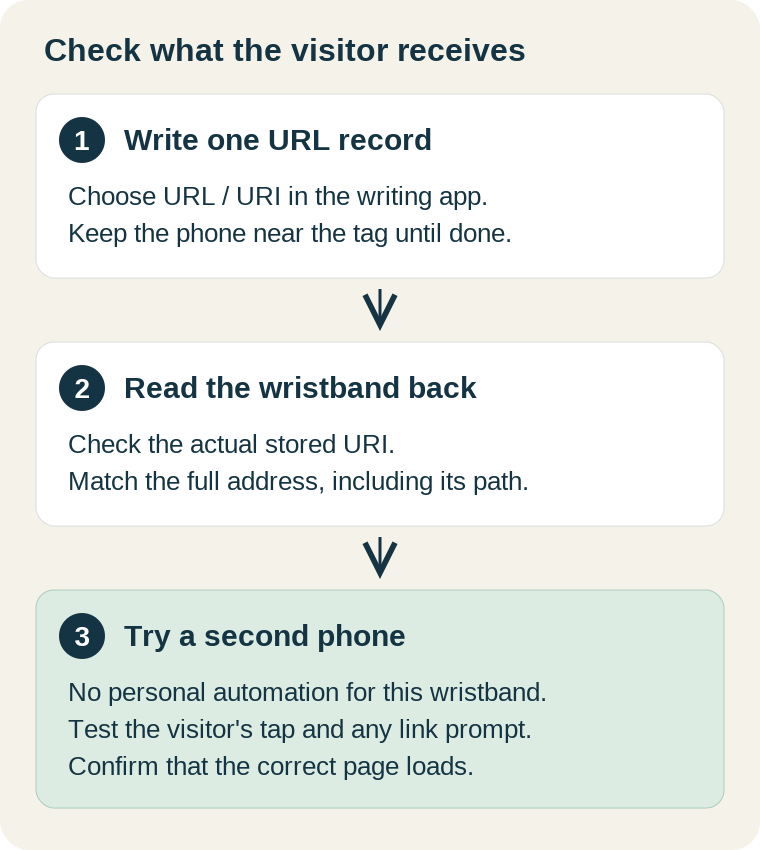
- Select URL / URI and enter the address you want to share. Check the protocol, domain and full path; avoid entering
https://twice if the interface already supplies it. - Confirm the record and review the pending list. For this first sample, keep just one URL record so the result is easy to check.
- Tap Write, which also shows the number of bytes to be written.
- Hold the phone’s NFC antenna area close to the tag inside the wristband. Keep it steady until the app reports completion.
This sequence follows Wakdev’s instructions for writing a URL with NFC Tools.
Choose a URL record when sharing a website. Entering the same address in a Text record stores text. A reading app may display it as a clickable link, but that does not establish how a phone will handle it during an ordinary tap. Android’s NFC documentation distinguishes URI records from text records.
Aim for the actual tag. On a fabric wristband with a separate tag, bring the phone close to that module. For a silicone or elastic wristband with no visible tag position, ask the supplier where the antenna sits. Finding a reliable reading position first makes writing easier.
Leave the sample writable while you check the address and visitor experience. Decide whether to lock it permanently only after those checks are complete.
Read it back, then try a second phone
Use NFC Tools to read the wristband again. Inspect the record actually returned by the tag, including its type, full address and any query parameters. The pending write list is not evidence of what the tag now contains.
Then try another phone as a visitor would. Do not set up a personal automation for this wristband on the second device. If visitors should be able to open the link without a dedicated NFC app, test without an NFC reading app actively scanning.
On an iPhone that supports background tag reading, a suitable URL record produces a notification; the user taps it to continue. Apple lists iPhone XS and later models for this feature and notes that the camera, Wallet or another active NFC reading session can prevent background reading. Return to the Home Screen and test with the phone in normal use. See Apple’s background tag-reading documentation.
On Android, check that the phone supports NFC, turn NFC on and test with the screen unlocked. Depending on the system version and app configuration, the user may need to tap a prompt or choose an app. A browser that does not open immediately is not, by itself, a failed read.
Keep tag detection and website loading separate in your test notes:
| Check | What to record | What a successful result looks like |
|---|---|---|
| Read after writing | Sample ID, record type and stored URL | The URI read from the tag matches the intended address |
| Tap with a second phone | Phone model, OS version and prompt | The phone recognizes the link and offers a way to open it |
| Load the website | Final address, content and network conditions | The correct event or product page loads |
| Try the wristband while worn | Wearing position and phone placement | The expected tap gesture still works |
Use this checklist for each sample. A successful test covers that particular device combination. For an event serving a wider range of devices, include representative visitor phones in the sample checks.
Also open the destination in a signed-out browser. A team member’s phone may retain a staff session that gives access ordinary visitors do not have.
Why does it work on your phone but not someone else’s?
Check whether you wrote a URL to the wristband or created an NFC automation in Apple Shortcuts.
A personal automation lets your phone recognize a tag and run an action already configured on that phone. Apple explains that its NFC trigger uses the tag’s unique identifier and ignores its other contents. Naming a wristband in Shortcuts and assigning an “open website” action therefore does not establish that a URL was written to it. See Apple’s NFC automation trigger guidance.
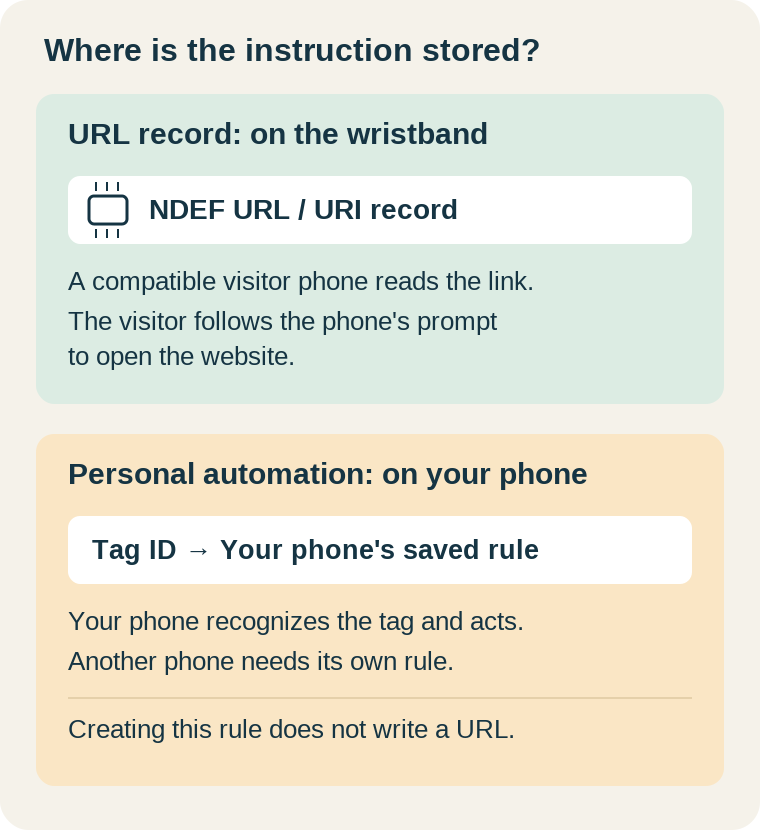
Suppose you set your phone to open an event schedule when it detects your wristband. Your phone has that rule; your friend’s phone does not. If the wristband also lacks a readable URL record, the same tap will not give your friend the schedule link.
Read the tag again in NFC Tools. If the intended URI is missing, write it using the steps above and repeat the second-phone check. If the correct URI is already there, check the second phone’s NFC support, current state and response to the link.
Troubleshoot where the process stops
| What you see | What to check first |
|---|---|
| The app reports a write failure | Phone and chip compatibility, read-only or protected memory, available space and whether the phone moved during writing |
| Tag information appears, but no URL | Whether a URI record was actually written, whether writing finished and whether you only configured a personal automation |
| The correct URL reads in the app, but a normal tap gives no link prompt | Whether another reading session is active, whether the phone’s current state permits reading and how its system handles the record |
| A link prompt appears, but the page fails to load | Network access, the stored address, redirects and website permissions |
| A page opens for the wrong event or person | An old URL or a mismatch between the encoded sample and its intended recipient |
A long address, especially one with several tracking parameters, may exceed the available space. Record formatting also takes bytes, so the character count in a browser’s address bar is not enough to judge fit. See how to check URL capacity on an NTAG213 wristband.
If the tag is permanently locked, repeated write attempts will not fix it. Check whether you control the stored web address or its destination before planning changes.
Move from one sample to a batch
For an event where every wristband opens the same schedule, choose a web address you will maintain throughout the event. Finish the sample writing and phone checks before handing that address to the person encoding the batch.
Specify whether all wristbands share one URL, what protection is required after writing and how the encoded results will be checked. Schedule changes can be made on the page at the same address, allowing visitors to see the updated content on a subsequent visit without rewriting every wristband.
If each exhibitor needs a wristband that opens a different profile, prepare a URL list that maps each address to its recipient. The read-back result, visible wristband number and assigned person should agree. Our digital business card wristband guide covers that encoding handoff.
For a BandWove quote, a useful brief could say:
We need NFC wristbands that share an event schedule. All wristbands should contain the same HTTPS URL. Please prepare a sample using the attached address so we can check it with our target iPhone and Android devices. The attachment includes quantity, wristband style, artwork and required arrival date. Please also confirm the protection options after encoding.
If the wristbands must also handle entry, door access or payments, specify those systems’ credential requirements separately. Opening a web page successfully verifies the link-sharing task only.