
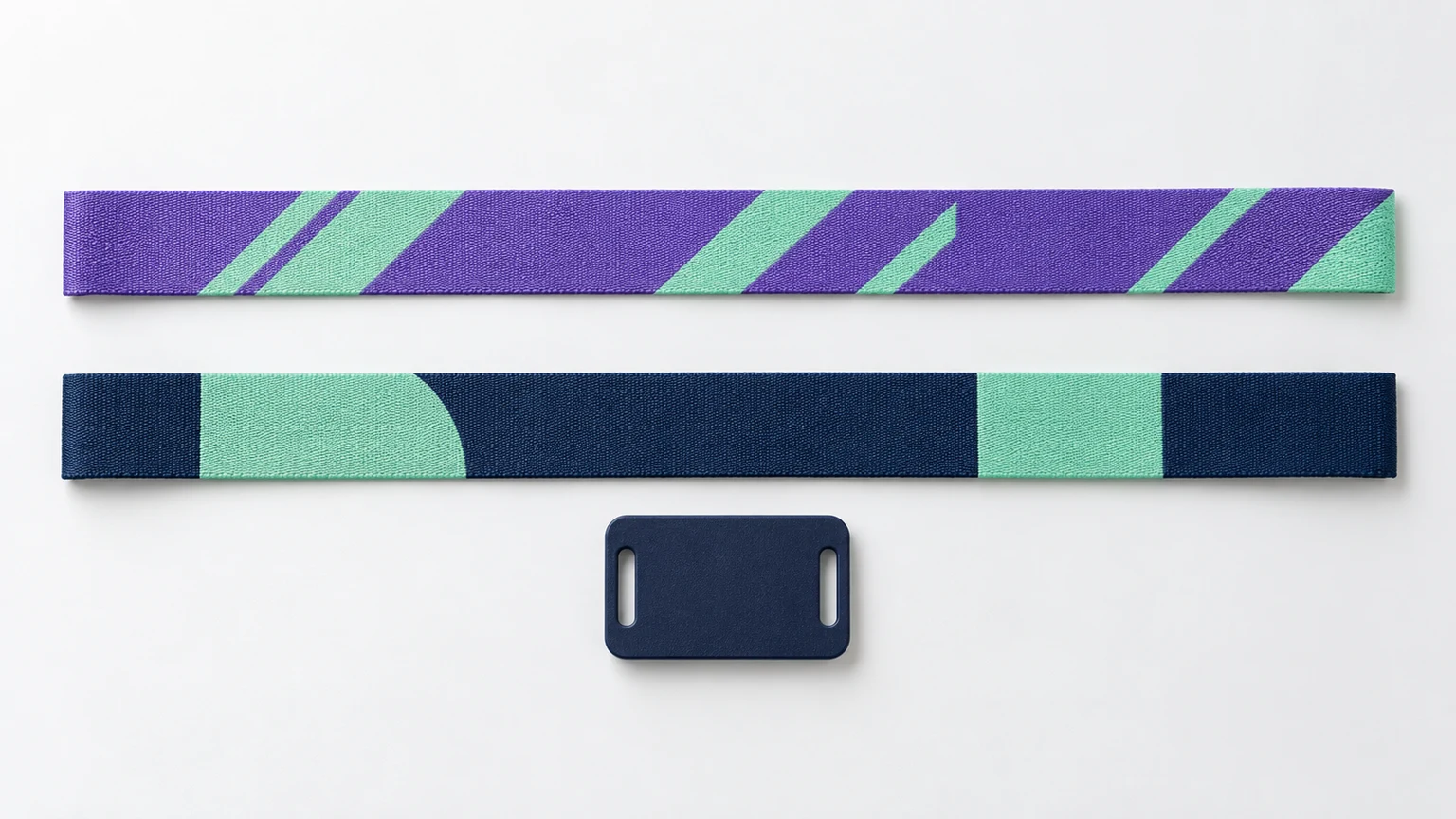
Start at the finished size
These guidelines apply to our Printed Fabric RFID Wristband: polyester with full-color dye sublimation. The default band is 350 × 15 mm; 350 × 20 mm is also available. Choose the width before placing small text or logos. The independent PVC tag has its own 35 × 25 mm artwork envelope.
Suggested band content area: 280 × 11 mm.
Tag envelope shown enlarged. Hardware position varies with fit; this is not a die-cut template.
Suggested band content area: 280 × 16 mm.
Tag envelope shown enlarged. Hardware position varies with fit; this is not a die-cut template.
The diagram shows artwork envelopes, not a measured position of the hardware on a worn wristband. The band retains its true proportions; you can inspect small details at a larger zoom in Studio. Front and back use independent artwork directions, so do not mirror one automatically.
Keep key content clear
For band artwork, keep important lettering and logos 2 mm inside each long edge and 35 mm from each end. That gives a suggested key-content area of 280 × 11 mm on the 15 mm band or 280 × 16 mm on the 20 mm band. Background colors and repeat patterns can fill the whole band.
On the tag, use a 2 mm inset as a layout starting point: 31 × 21 mm. The rectangle is not a final die-cut template. Slots, rounded corners and the actual printable face must be checked against the selected tag construction.
These are BandWove artwork recommendations, not universal manufacturing tolerances. Closure and tag coverage change with fitting. Repeat a short logo where useful, avoid relying on a single message near a fastening, and check the product proof for hardware clearance.
Distinguish trim from bleed
Trim is the finished boundary. Bleed is extra artwork outside it. Our design-file convention adds 3 mm on every side when you choose a bleed export. Extend the background beyond trim; for a pattern that must continue across the edge, extend the actual pattern elements too.
| Surface | Finished / trim | With 3 mm bleed |
|---|---|---|
| Front or back · 15 mm | 350 × 15 mm | 356 × 21 mm |
| Front or back · 20 mm | 350 × 20 mm | 356 × 26 mm |
| Independent tag | 35 × 25 mm | 41 × 31 mm |
Studio defaults to a trim preview. Safety and trim/bleed guides are editing aids and do not appear in PNG or SVG exports. A bleed export is not a guarantee of a production-ready file: the selected construction and proof still determine the final print arrangement.
Place logos, type and images
- Keep an editable logo master. A vector logo retains its edge definition when resized; embedding a screenshot inside an SVG or PDF does not turn it into vector artwork.
- Review the design at its physical size. Short text and clear contrast are easier to read on a narrow strip than a dense line of small lettering. Avoid thin details against a busy pattern.
- Use the original raster image, not a compressed messaging-app copy. Studio’s image-quality warning reflects the placed size; enlarging an image does not add detail.
- Keep a font-editable source project. When preparing external vector artwork for review, include the required font information or an outlined copy alongside the original.
There is no single minimum text size that suits every font and artwork process. Check a physical-size proof for counters, fine lines and legibility. Screen colors describe the design intent; provide brand color references where a close match matters.
Treat each surface independently
The front carries the main outward artwork. The back can carry a secondary pattern or message and is edited separately. Check its reading direction deliberately; independent editing does not promise exact front-to-back print registration.
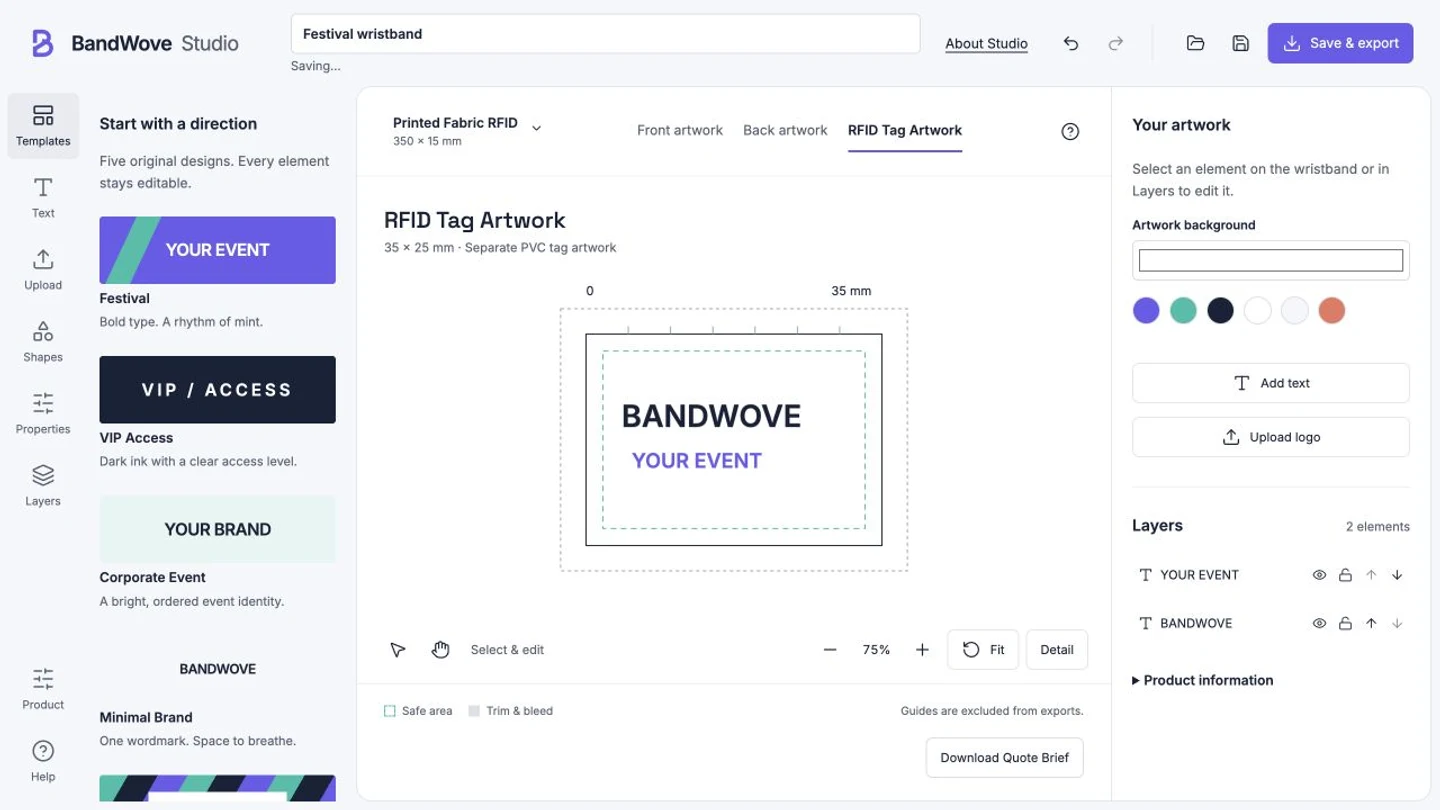
RFID Tag Artwork is a separate canvas, not a patch copied from the fabric band. Keep its logo or numbering readable around the confirmed slots. Visible serial numbers and chip data are different things: if they must correspond, include a mapping requirement in the project brief. Never put security keys into artwork or general notes.
Save the project, then export
- Save an editable Studio project containing all three artwork surfaces, layers, text and uploaded assets. Keep a downloaded copy as well as your local draft.
- Export Front artwork, Back artwork and RFID Tag Artwork separately as PNG previews or SVG designs. Select trim or bleed intentionally.
- Reopen the project to continue editing. PNG is a flattened image; SVG is an exchange/export file and is not a substitute for the full Studio project.
- Review dimensions, direction, text, uploaded assets and separate file names before attaching the artwork to a project brief.
Studio accepts PNG and JPG logos, plus SVG after safety checks. AI and PDF masters can be useful for artwork review outside Studio; they are not editor upload formats. An SVG can still contain raster images and font dependencies, so inspect it in the receiving application. Studio exports do not certify a file for a particular printing workflow.
Sources & scope
Dimensions and artwork allowances follow BandWove’s current printed fabric design specification. The supplier references below informed the guidance; their templates and margins vary by product.
- Preseli RPET DSWR artwork template
- Bott Printi OP020 construction and artwork dimensions
- WristbandFactory artwork preparation guidance
References checked October 30, 2026.